Pixel Fold Desktop Mode: What Works When You Unfold It
Unfolding a Pixel Fold doesn't turn on desktop mode — here's what actually happens on each Pixel Fold model, and how to get real desktop mode on an external display or a Mac.
Pixel Fold Desktop Mode: What Works When You Unfold It
If you own a Pixel Fold and searched for "pixel fold desktop mode," the honest answer depends entirely on which Pixel Fold you mean — and it's more limited than the marketing around Android 16's desktop mode suggests. Google's desktop mode is real, it's stable, and it's genuinely useful. But unfolding your phone and expecting a windowed desktop to appear on the inner screen isn't what it does, on any Pixel Fold model.
Here's what actually happens when you connect a Pixel Fold to a display, what changes when you just unfold it, and why the two get confused constantly.
What Is Pixel Desktop Mode, Actually?
Android 16's desktop mode — the feature Google rolled out broadly with the March 2026 Pixel Drop (Android 16 QPR3) — turns your phone into a windowed, taskbar-driven desktop environment when you connect it to an external monitor over USB-C. Apps open in resizable, movable windows instead of full-screen phone layouts, and you get a taskbar, keyboard shortcuts, and mouse support once you pair a Bluetooth or wired keyboard and mouse.
The critical word is "external." Desktop mode is triggered by plugging into a display — it is not a mode that lives on the phone's own screen. That distinction matters a lot once you bring foldables into the picture, because a Fold already has a second, larger screen built in, and it's natural to assume that's where "desktop mode" would show up.
It doesn't.
Original Pixel Fold: Not Supported At All
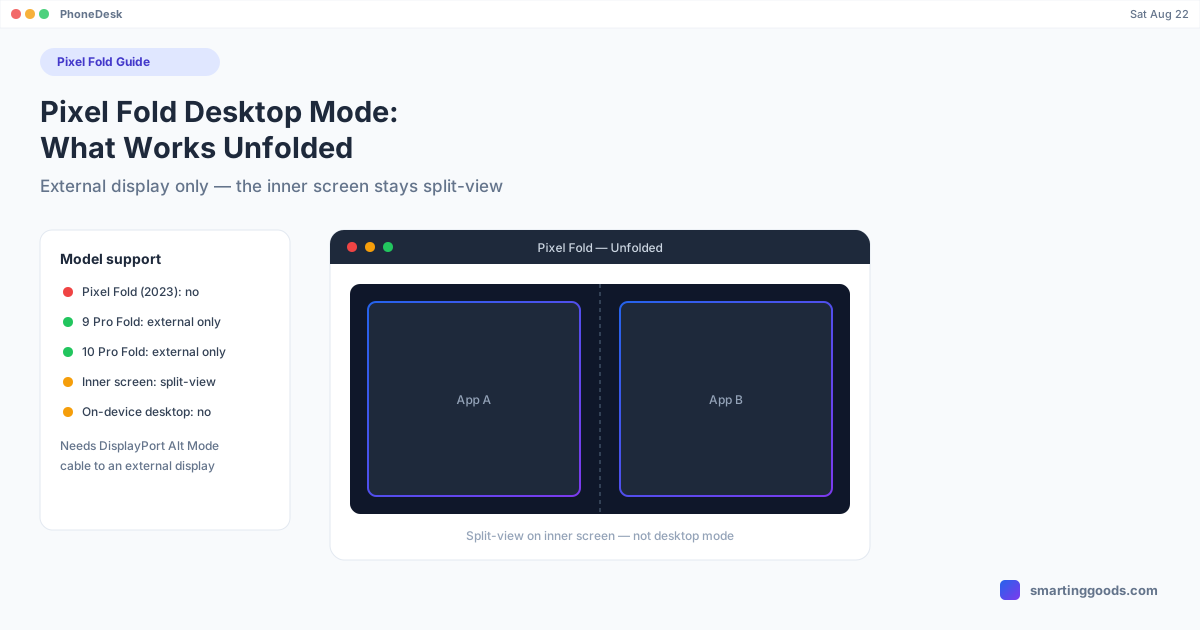
If you have the original Pixel Fold (2023), skip the rest of this — desktop mode isn't available to you. Google's desktop mode rollout is scoped to Pixel 8 and newer hardware. The original Pixel Fold predates that cutoff, so no version of Android 16 brings desktop mode to it, on the inner screen or an external one. This is a hardware/software support-list limitation, not a bug or a toggle you're missing in developer options.
Pixel 9 Pro Fold and Pixel 10 Pro Fold: External Display Only
The Pixel 9 Pro Fold and Pixel 10 Pro Fold are the foldables that actually qualify for desktop mode, since both launched after the Pixel 8 cutoff. Connect either one to an external monitor via a USB-C cable that supports DisplayPort Alt Mode, and you get the same desktop mode experience as a Pixel 9 or Pixel 10 phone — resizable windows, taskbar, multiple virtual desktops, keyboard shortcuts.
What you do not get is windowed multitasking on the fold-out inner display itself. Unfold a Pixel 9 Pro Fold and desktop mode does not appear on that bigger screen. The inner screen still runs Android's normal foldable multitasking — split-screen, app pairs, that sort of thing — but not the desktop-mode windowing environment. That capability is reserved for the Pixel Tablet, which Google built specifically to support on-device "Desktop Windowing" without an external monitor. We cover that distinction in detail in our Pixel Tablet desktop mode guide.
So the practical rule for a Pixel 9 Pro Fold or Pixel 10 Pro Fold owner: unfolding the phone changes your multitasking layout, but only plugging into an external display gets you real desktop mode.
Why This Trips People Up
Foldables are the one device category where "just unfold it and get a desktop" feels like it should be true — you already have the bigger screen sitting right there. But Android's windowing architecture treats "bigger screen on the same device" and "separate external display" as two entirely different code paths. Desktop mode was engineered around plugging into a monitor: taskbar layout, cursor behavior, and window chrome are all tuned for a screen the phone isn't physically attached to.
There's also a real possibility this changes. Stock Android's windowing work has visibly drawn inspiration from OnePlus's Open Canvas multitasking layout on foldables — Google has been iterating quickly on desktop-style windowing since the Android 16 betas. It wouldn't be surprising to see some on-device windowing eventually reach foldables the way it already has the Pixel Tablet. As of the current Android 16 QPR3 stable release, though, it hasn't — treat any claim otherwise as forward-looking rumor, not shipped behavior.
Using Pixel Fold Desktop Mode on a Mac
Once you're connected to an external display and desktop mode is running on a Pixel 9 Pro Fold or Pixel 10 Pro Fold, the next problem most people hit is Mac-specific: MacBooks don't accept video input over USB-C. You can't just plug your Fold into your MacBook and see desktop mode appear on the Mac's own screen — the Mac's USB-C ports only output video, they don't receive it.
That's a real external-monitor limitation, separate from the on-device windowing question above, and it's the same issue every Pixel desktop mode user runs into on a Mac. PhoneDesk is a macOS menu bar utility built specifically to solve it — it drives your phone's desktop mode as a real, resizable window on your Mac, no separate monitor, capture card, or cable-swapping required. It works the same way whether your phone is a Pixel Fold, a regular Pixel, or a Samsung DeX device.
If you're setting up a Pixel Fold with PhoneDesk for the first time, the full walkthrough — cables, pairing, and troubleshooting — is in our Pixel desktop mode on Mac guide.
Frequently Asked Questions
Q: Does the original Pixel Fold support desktop mode? A: No. Google's Android 16 desktop mode is limited to Pixel 8 and newer devices. The original Pixel Fold (2023) launched before that cutoff and isn't included in the rollout, regardless of Android version installed.
Q: Does unfolding a Pixel 9 Pro Fold turn on desktop mode? A: No. Desktop mode only activates when the phone is connected to an external monitor over USB-C with DisplayPort Alt Mode support. Unfolding the phone gives you Android's normal foldable multitasking (split-screen, app pairs) on the inner screen, not the desktop-mode windowing environment.
Q: Which Pixel foldables support desktop mode? A: The Pixel 9 Pro Fold and Pixel 10 Pro Fold both support desktop mode when connected to an external display. The original Pixel Fold does not.
Q: Can I run Pixel Fold desktop mode without an external monitor? A: Not currently. On-device windowing without a monitor is a Pixel Tablet feature (Desktop Windowing), not something Google has extended to foldable phones yet.
Q: How do I use Pixel Fold desktop mode on a Mac? A: Since Macs don't accept video input over USB-C, you can't connect a Fold directly to a MacBook and see desktop mode. PhoneDesk, a $25 one-time macOS menu bar app, solves this by displaying your phone's desktop mode as a real window on your Mac over USB or Wi-Fi.
The Bottom Line
Desktop mode on a Pixel Fold means exactly what it means on any other Pixel: plug into an external monitor, get a desktop. The fold-out screen itself doesn't switch to a desktop environment on any current model, and the original Pixel Fold isn't supported at all. If you've got a Pixel 9 Pro Fold or Pixel 10 Pro Fold and want that desktop mode experience on your Mac instead of a separate monitor, PhoneDesk handles the connection in one click — no capture card, no fighting with adapters.
PhoneDesk is a $25 one-time license — no subscription, 14-day no-questions refund. See the full feature list →