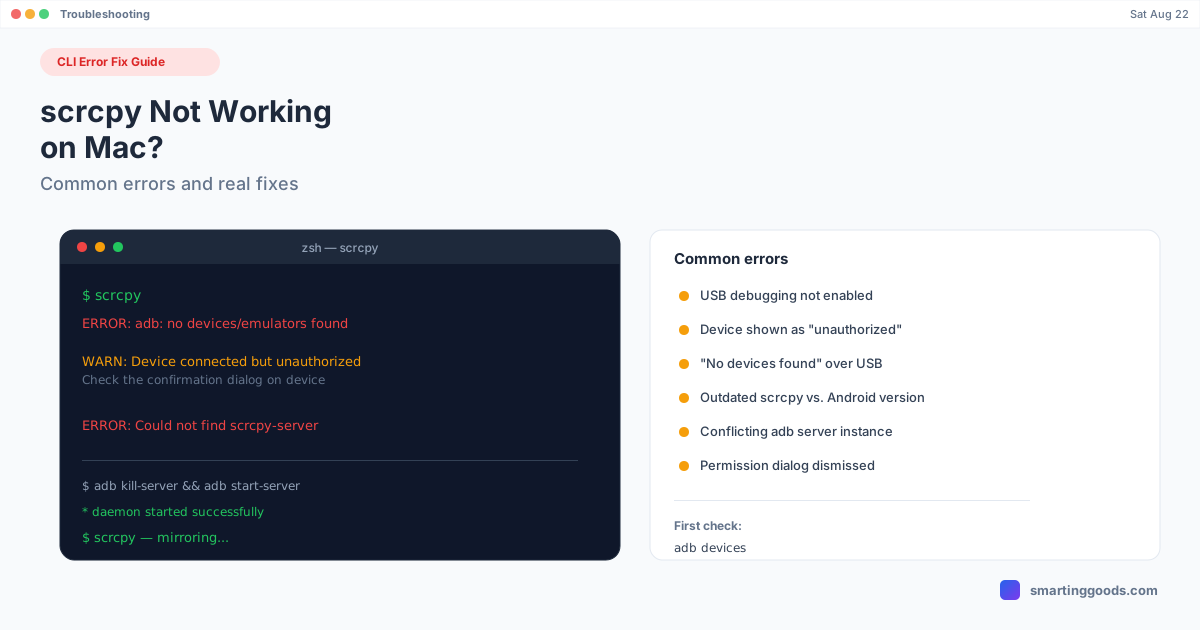
scrcpy Not Working on Mac? Common Errors and Fixes
"No devices found," "device unauthorized," or scrcpy just won't launch — here's what each error actually means and how to fix it, one cause at a time.
scrcpy Not Working on Mac? Common Errors and Fixes
scrcpy is about as reliable as free, open-source CLI tools get, but when it fails, the error messages it throws are terse and not always self-explanatory to someone who isn't a daily adb user. Almost every "scrcpy not working" report on Mac comes down to one of four things: USB debugging isn't actually enabled, the device is connected but unauthorized, adb has a stuck or conflicting server process, or a version mismatch between scrcpy and your phone's Android version. This walks through each error and the exact fix.
Before Anything Else: Check adb Sees the Device
scrcpy is built on top of adb — if adb can't see your phone, scrcpy can't either, and the fix is almost always on the adb side, not scrcpy's. Run this first, every time:
adb devices
The output tells you exactly which of the errors below you're dealing with:
- Empty list ("List of devices attached" with nothing under it) → device not detected at all
- A device listed as
unauthorized→ connected but not approved - A device listed with a serial number, no error → adb is fine, the problem is scrcpy-specific
Error: "No devices/emulators found"
This means adb genuinely can't see your phone over USB. The causes, in order of likelihood:
1. USB debugging isn't enabled. Go to Settings → About phone → tap Build number seven times to unlock Developer options, then Settings → Developer options → enable USB debugging. This is skipped more often than you'd expect, especially on a phone you don't use with adb regularly.
2. The cable is charge-only. Cables bundled with power banks and budget chargers frequently carry power but no data. If the phone charges but never shows a USB debugging authorization prompt when connected, try a different cable before anything else.
3. USB connection mode is set to "Charging only." Pull down the notification shade after plugging in and check the USB mode — some phones need "File Transfer" or "PTP" mode active for adb to see the device at all, not just power delivery.
4. Wrong USB port or a passive hub. Plug directly into a port on the Mac itself, skipping any hub or dock, to rule that out as the point of failure.
Error: Device Shown as "unauthorized"
This is different from "not found" — the device shows up in adb devices but with unauthorized next to the serial number instead of device. This means the physical connection is fine, but the phone hasn't approved this specific computer for debugging access yet.
Fix: unlock your phone's screen and look for a dialog titled "Allow USB debugging?" — it may be hidden behind another app or simply easy to miss. Check the box for "Always allow from this computer" and tap Allow. If the dialog never appears at all, revoke and re-trigger it:
adb kill-server
Unplug the phone, replug it, and the authorization prompt should reappear. If it still doesn't, go to Developer options → Revoke USB debugging authorizations, then reconnect — this clears out a corrupted authorization state that sometimes prevents the dialog from showing at all.
Error: scrcpy Launches, Then Immediately Closes or Hangs
If adb sees the device fine (adb devices shows device, not unauthorized or empty) but scrcpy itself won't launch a window, this is usually a stuck adb server holding a lock, or a version mismatch.
Fix 1 — restart the adb server cleanly:
adb kill-server
adb start-server
scrcpy
This clears a huge share of "connects to adb fine but scrcpy won't start" cases — a previous scrcpy session or another adb-based tool (Android Studio, a different mirroring app) can leave the server in a state that blocks a fresh connection.
Fix 2 — check for a version mismatch. scrcpy has to match features against your phone's Android version, and very old or very new Android releases sometimes ship faster than scrcpy's release cycle catches up. Update scrcpy to the latest version:
brew upgrade scrcpy
If you installed it manually rather than through Homebrew, download the current release directly from the scrcpy GitHub repository instead.
Error: "adb: command not found" (Before scrcpy Even Runs)
If the very first thing you hit is a missing-adb error rather than a scrcpy-specific one, that's a separate PATH configuration issue, not a scrcpy bug — see the full walkthrough in ADB Not Found on Mac. Installing scrcpy through Homebrew (brew install scrcpy) generally avoids this, since Homebrew pulls in adb as a dependency automatically.
Error: Black Screen or Frozen Frame After Connecting
If scrcpy's window opens but shows nothing or freezes on the first frame, this is usually a permissions or wake-lock issue on the phone side rather than scrcpy itself. Make sure the phone's screen is unlocked and awake when you launch scrcpy — some Android versions won't stream a locked screen at all for security reasons. If the phone locks itself mid-session, the screen will typically go black in the scrcpy window too.
Wireless scrcpy: A Different Failure Mode Entirely
If USB scrcpy works fine but wireless (TCP/IP) mode doesn't, that's a network problem, not an adb problem — both the phone and Mac need to be on the same Wi-Fi network, and the connection has to be initialized over USB first (adb tcpip 5555) before you disconnect the cable and reconnect wirelessly by IP address. If that initial USB step is skipped, wireless mode has nothing to connect to.
Quick Reference
| Symptom | Cause | Fix |
|---|---|---|
| Empty device list | USB debugging off, bad cable, or wrong USB mode | Enable USB debugging, swap cable, check notification shade |
| Device listed as "unauthorized" | Phone hasn't approved this computer | Check for the hidden dialog, or revoke and reconnect |
| scrcpy hangs or closes immediately | Stuck adb server, or version mismatch | adb kill-server && adb start-server, then update scrcpy |
| "command not found: adb" | adb not installed or not in PATH | See the ADB not found guide |
| Black screen after connecting | Phone locked, or wake-lock issue | Unlock and wake the phone before launching |
| Wireless mode won't connect | USB pairing step skipped | Run adb tcpip 5555 over USB first |
If You'd Rather Skip the Terminal Entirely
scrcpy's error messages assume you're comfortable reading adb output and running a couple of terminal commands to recover — which is fine for the developer audience it's built for, but not everyone wants that as the price of mirroring a phone screen. PhoneDesk uses the same underlying adb connection scrcpy does, but handles device detection, authorization prompts, and server state automatically from a menu bar app — no terminal, no adb kill-server, no manually matching a scrcpy version to your Android release.
It also goes further than mirroring: Samsung DEX and Pixel desktop mode run as real Mac windows (not just a mirrored phone screen), your phone can act as a real second monitor, and file transfer works over the share sheet with no cable. See the full comparison in scrcpy vs PhoneDesk.
Frequently Asked Questions
Q: Why does scrcpy say "unauthorized" even though I already tapped Allow on my phone?
A: The authorization can get corrupted after an OS update or a computer name change. Run adb kill-server, unplug and replug the phone, and if the dialog doesn't reappear, go to Developer options → Revoke USB debugging authorizations and reconnect to force a fresh prompt.
Q: Does scrcpy work with a wireless-only connection, with no USB cable at all?
A: Not for the initial pairing on most Android versions — you generally need to connect over USB once to run adb tcpip 5555, then you can disconnect the cable and continue wirelessly. Android 11+ has an adb wireless debugging option that can skip this in some cases.
Q: I updated my phone's Android version and now scrcpy won't connect — why?
A: This is a version mismatch. scrcpy needs to be reasonably current to support the latest Android releases; run brew upgrade scrcpy (or download the latest release manually) before troubleshooting further.
Q: Is there a mirroring tool that doesn't require fixing adb errors like this? A: PhoneDesk uses adb under the hood but handles connection, authorization, and server management automatically — there's no terminal output to interpret. It's a $25 one-time license, and it also does Samsung DEX, second-monitor mode, and file transfer, which scrcpy doesn't.
Bottom Line
Almost every scrcpy failure on Mac traces back to one of a handful of adb-level issues — debugging not enabled, an unauthorized device, a stuck server, or a version mismatch — and adb devices alone will usually tell you which one you're facing. Fix the underlying adb issue and scrcpy typically works immediately, since it isn't doing anything more exotic than piping adb's screen data into a window.
If you'd rather not troubleshoot adb output every time you want to mirror your phone, see how PhoneDesk handles the same connection automatically → — $25 one-time, no subscription, 14-day refund.