Every Way to Get Desktop Mode on a Pixel Phone (2026 Guide)
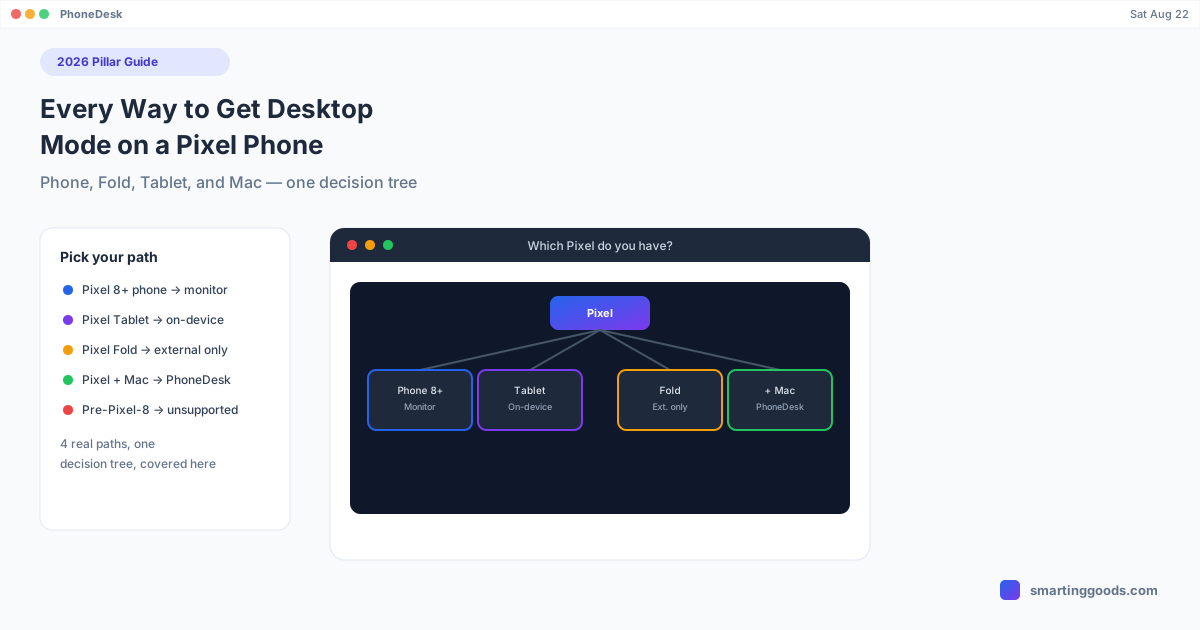
Pixel desktop mode isn't one path — it branches by device: phone, Fold, Tablet, and Mac each work differently. This decision-tree guide covers every real option in 2026.
Every Way to Get Desktop Mode on a Pixel Phone (2026 Guide)
"Desktop mode on a Pixel" means different things depending on which Pixel you own, what you're connecting it to, and whether a Mac is involved. There isn't one universal path — there's a small decision tree, and picking the wrong branch is why so much advice online feels contradictory. This guide is that decision tree: every real way to get a Pixel into a desktop-style environment in 2026, and which one applies to your actual hardware.
Start Here: What Pixel Do You Have?
Desktop windowing on Pixel hardware isn't a single feature — Google ships at least two distinct implementations depending on the device, plus a completely different on-device mode exclusive to the Pixel Tablet. Before anything else, figure out which category you're in.
| Your device | What you get | Requires |
|---|---|---|
| Pixel 8 or newer (phone) | Desktop mode on an external display | USB-C cable/dock with DisplayPort Alt Mode + a monitor |
| Pixel 9 Pro Fold / 10 Pro Fold | Same phone desktop mode, external display only — not on the inner screen | Same as above |
| Original Pixel Fold (2023) | Not supported | — |
| Pixel Tablet | Desktop Windowing, on-device, no monitor needed | Nothing extra — built in |
| Pre-Pixel-8 phone | Not supported | — |
If you land in the "not supported" rows, there's no workaround — Google scoped desktop mode to Pixel 8 and later hardware, and it isn't coming to older devices retroactively.
Way 1: Native Desktop Mode via External Monitor (Pixel 8+)
This is the default, Google-built path for any qualifying Pixel phone. Connect your Pixel to an external monitor over a USB-C cable that supports DisplayPort Alt Mode, and you'll be prompted to choose Desktop or Mirror. Choose Desktop and you get resizable windows, a taskbar, multiple virtual desktops, and keyboard/mouse support once you pair peripherals.
As of the March 2026 Pixel Drop (Android 16 QPR3), this ships stable and enabled by default — no developer-options toggle required on current software. The most common setup mistake is using a charge-only or plain data USB-C cable that doesn't actually carry video; check that your cable or hub explicitly supports DisplayPort Alt Mode before assuming a connection issue is something else.
We cover the full setup, including current-generation specifics, in our Pixel 9 desktop mode setup guide.
Way 2: Desktop Windowing on the Pixel Tablet (No Monitor)
If you own a Pixel Tablet rather than a phone, you don't need any of the above — Desktop Windowing runs directly on the tablet's own screen, no external display, no DisplayPort cable, no dock. It shipped by default with the same Android 16 QPR3 update and gives you freeform, resizable app windows and a taskbar right on the tablet.
It's a genuinely different implementation from phone desktop mode, built specifically for on-device use, and it's currently the only Pixel hardware that gets a desktop-style UI without connecting to anything external. Full details on what it can and can't do are in our Pixel Tablet desktop mode guide.
Way 3: Desktop Mode on a Foldable — With a Real Caveat
Pixel foldables get lumped into "does my Pixel do desktop mode" questions constantly, and the answer is more nuanced than a yes or no. The Pixel 9 Pro Fold and Pixel 10 Pro Fold both support desktop mode — but only on an external display, exactly like a non-folding Pixel phone. Unfolding the device does not trigger any desktop-style windowing on the larger inner screen; that screen still runs Android's normal foldable split-screen multitasking.
The original 2023 Pixel Fold isn't supported at all, since it predates the Pixel 8 hardware cutoff. We break down exactly what does and doesn't happen on each Fold model in our Pixel Fold desktop mode guide.
Way 4: Desktop Mode on a Mac (Any Qualifying Pixel)
Here's the branch that trips up the most people, because it isn't actually about which Pixel you have — it's about the display you're trying to use. MacBooks don't accept video input over USB-C. Their USB-C ports are output-only, designed to drive an external monitor, not receive a signal from one. Plug a Pixel straight into a MacBook expecting desktop mode to show up on the Mac's screen, and nothing happens — the phone may charge, but there's no video handoff.
Google's desktop mode was built around plugging into a monitor, and neither Google nor Apple ships anything that bridges that specific gap. Two real options exist:
- Buy a separate monitor or capture card. Works, but adds hardware cost and desk space, and a capture card introduces latency that makes cursor movement feel floaty.
- Use PhoneDesk. A macOS menu bar utility built specifically for this scenario — it receives your Pixel's desktop mode session and displays it as a real, resizable window on your Mac, over USB or Wi-Fi, with no separate monitor or capture card required. It works the same way for Pixel desktop mode and Samsung DeX, so it's not a single-brand tool if your household mixes phones.
Full setup walkthrough, cable requirements, and troubleshooting are in our Pixel desktop mode on Mac guide.
What About OnePlus, Samsung, and Other Android Phones?
If you're comparing across brands: Samsung's equivalent is DeX, a more mature external-display desktop environment with a wider device range and a phone-as-touchpad trick Google hasn't matched yet. OnePlus's Open Canvas, despite sometimes being compared to DeX, is a different kind of feature entirely — an on-device, three-app multitasking layout for the inner screen of a OnePlus foldable, with no external-monitor output at all. We cover that distinction in detail in our OnePlus Open Canvas guide. None of this changes what your Pixel does — it's just useful context if you're shopping across brands or comparing notes with someone who owns different hardware.
Quick Decision Guide
- I have a Pixel 8, 9, or 10 phone and a spare monitor → Native desktop mode, external display. See the Pixel 9 setup guide.
- I have a Pixel Tablet → Desktop Windowing, already built in, no monitor needed. See the Pixel Tablet guide.
- I have a Pixel Fold or Pixel 9/10 Pro Fold → Desktop mode works, but only when plugged into an external display — not on the unfolded inner screen. See the Pixel Fold guide.
- I have a Pixel and a Mac, no spare monitor → PhoneDesk. See the Pixel on Mac guide.
- I have a pre-Pixel-8 phone → Not supported, no workaround.
Frequently Asked Questions
Q: Which Pixel phones support desktop mode? A: Pixel 8, Pixel 8 Pro, and every Pixel 9 and Pixel 10 series device, including the Pro Fold models — but Fold desktop mode only works on an external display, not the unfolded inner screen. The original 2023 Pixel Fold and any phone older than Pixel 8 are not supported.
Q: Do I need an external monitor for Pixel desktop mode? A: For any Pixel phone, yes — desktop mode is triggered by connecting to an external display over USB-C with DisplayPort Alt Mode support. The one exception is the Pixel Tablet, whose Desktop Windowing runs on-device with no monitor required.
Q: Can I get Pixel desktop mode on my Mac without buying a monitor? A: Yes — PhoneDesk is a macOS menu bar app that displays your Pixel's desktop mode as a real window on your Mac over USB or Wi-Fi, since Macs don't accept video input over USB-C directly.
Q: Does unfolding a Pixel Fold turn on desktop mode? A: No. Unfolding gives you Android's standard foldable split-screen multitasking. Desktop mode on a Pixel 9 Pro Fold or Pixel 10 Pro Fold only activates when connected to an external monitor.
Q: Is Pixel desktop mode the same as Samsung DeX? A: They're similar in concept — both turn a phone into a windowed desktop on an external display — but they're separately built. DeX is more mature and works across more devices; Pixel desktop mode is native to Android 16 and newer, with features like Universal Cursor and per-display settings memory.
The Bottom Line
"Desktop mode on a Pixel" branches into at least four real paths depending on your hardware: native external-display desktop mode on a Pixel 8+ phone, on-device Desktop Windowing exclusive to the Pixel Tablet, the same phone desktop mode with a foldable-specific caveat on Pixel Fold models, and — for anyone trying to do any of this on a Mac — a software bridge since Apple's hardware doesn't accept video input.
If your path ends at "I want this on my Mac," PhoneDesk is built specifically for that step.
PhoneDesk is a $25 one-time license — no subscription, 14-day no-questions refund. See the full feature list →