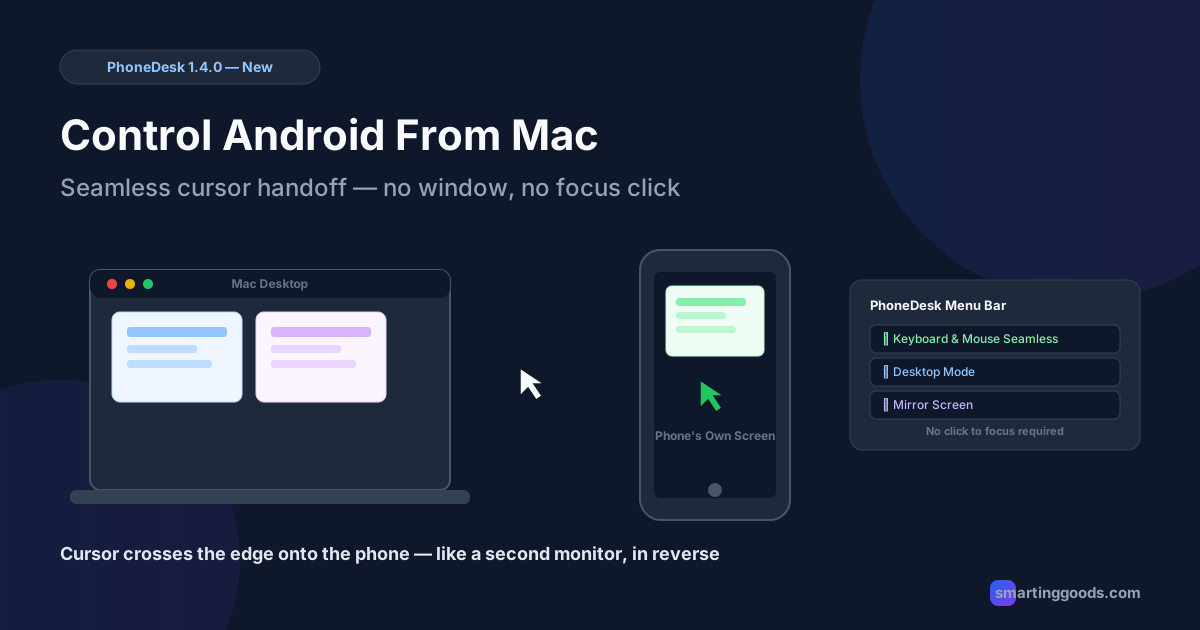
Control Android From Mac: Seamless Cursor Handoff
PhoneDesk 1.4.0 lets your Mac's cursor cross the screen edge straight onto your Android phone's own display — no mirrored window, no focus click. Here's how it's different from DEX and screen mirroring.
Control Android From Mac: Seamless Cursor Handoff Explained
If you've searched "control android from mac," most of what you'll find is screen mirroring — a window on your Mac showing your phone's screen, with your mouse and keyboard controlling that window. That's a real and useful thing, and PhoneDesk has covered it before (Samsung DEX on Mac, mirroring your Android to a Mac). But as of PhoneDesk 1.4.0, there's a second, genuinely different way to control an Android phone from a Mac, and it doesn't involve a window at all.
It's called Keyboard & Mouse Seamless. Instead of mirroring your phone's screen into a box on your Mac, your Mac's actual cursor moves off the edge of your Mac's display and onto your phone's own physical screen — the way it would move onto a second monitor sitting next to your laptop. Your keyboard input follows the cursor. Nothing is mirrored anywhere. There's no window to click into first. You just move the mouse, and control follows it.
This is the part search results don't have good language for yet, because the feature is new enough that almost nobody is searching for it by name. So we'll anchor this to the terms people actually use — DEX, desktop mode, "control android phone from mac" — and get into what's actually different here.
Mirroring a Window vs. Controlling the Phone's Own Screen
This distinction matters enough that it's worth being blunt about it, because "control my Android from my Mac" has meant one thing for years and now means two.
Mirroring (what scrcpy, Vysor, and PhoneDesk's own Desktop Mode and Mirror Screen features do) streams a live video feed of your phone's screen — or a DEX/desktop-mode session — into a resizable macOS window. Your mouse and keyboard control that window once you've clicked into it. It's the same mental model as remote desktop software: you're looking at a picture of the phone, sent over USB or Wi-Fi, and your inputs are sent back the same way. This is what every previous PhoneDesk post, and basically every competing tool, is describing when it talks about controlling an Android phone from a Mac.
Seamless cursor handoff (PhoneDesk 1.4.0's Keyboard & Mouse Seamless) is architecturally different. There is no window showing the phone. The phone's own screen — the physical display in your hand — becomes an extension of your Mac's desktop, the same way a second monitor does. Push the cursor past the right edge of your MacBook's screen and it appears on the phone's screen instead of stopping at the edge or wrapping back. Your keyboard focus moves with it. Push it back left and you're back on the Mac.
The practical difference: with mirroring, you're always looking at your Mac to see what you're doing on the phone. With seamless handoff, you look at the phone itself while your Mac drives it, exactly like you'd glance over at a second monitor.
How Keyboard & Mouse Seamless Actually Works
PhoneDesk 1.4.0 removes a limitation that existed in the previous release. In 1.3.0 ("Keyboard & Mouse Only"), you could already control the phone's own screen with your Mac's keyboard and mouse — but you had to click into a small PhoneDesk window first to give it focus before input would pass through. It worked, but it was one extra step every time, and it still felt like operating through an intermediary window rather than treating the phone as a real display.
1.4.0 removes that step entirely. Here's what changed and what's new:
- No focus step. The cursor crosses the screen edge and lands on the phone directly. There's nothing to click first.
- Edge-based handoff. You arrange the phone relative to your Mac's display (left, right, above, however you actually have it sitting on your desk) the same way you'd arrange a second monitor in System Settings, and the cursor crosses at the edge you'd expect.
- Multi-phone cursor glide. If you've got more than one phone connected, you can line them up and move the cursor from one phone's screen straight to the next, without passing back over the Mac in between.
- Drag app windows across. Once the cursor is on the phone, you can open an Android app, resize it, and drag that app's window off the phone and onto your Mac's display — then drag it back to the phone when you're done with it.
- Smoother pointer response over Wi-Fi with multiple phones connected. Cursor tracking held up better under multi-device load in this release.
- More reliable reconnection on networks that block Bonjour. Office and campus Wi-Fi networks frequently block the mDNS/Bonjour discovery that a lot of Mac-to-device tools rely on; 1.4.0 handles reconnecting on those networks better than before.
Under the hood this still rides on the same input-injection pipeline PhoneDesk has used since Keyboard & Mouse Only shipped — it's the trigger condition that changed, from "click to focus" to "cross the edge."
What You Need for This to Work
A few honest caveats, because this isn't universal yet:
- Android 11 or newer is required for the keyboard/mouse features specifically. PhoneDesk's other features (Desktop Mode, Mirror Screen, file transfer) work down to Android 9, but seamless cursor handoff and Keyboard & Mouse Only both depend on Android APIs that only exist from Android 11 onward.
- macOS 13 or newer on the Mac side.
- USB or Wi-Fi both work. USB is the more consistent starting point for your first pairing; Wi-Fi is what you'll use day to day once paired.
- This is a cursor and keyboard handoff, not a display mirror. If what you actually want is to see your phone's screen — or a DEX/Pixel desktop-mode session — rendered as a window on your Mac, that's Desktop Mode or Mirror Screen, covered in the Samsung DEX on Mac guide and the Pixel desktop mode guide. Seamless handoff is a different feature for a different job — it's for when you want to use the phone's screen and touch-free input, not watch it from your Mac.
How This Compares to Logitech Flow and Apple's Universal Control
The closest thing most people have actually used is Logitech Flow (moving a Logitech mouse and keyboard between two computers by pushing the cursor off one screen's edge onto the other) or Apple's Universal Control (the same idea, built into macOS, between a Mac and an iPad or another Mac). Keyboard & Mouse Seamless is the same interaction model — edge-crossing cursor handoff — applied to a Mac and an Android phone, which neither Logitech Flow nor Universal Control support.
Google has its own answer for part of this. Universal Cursor (the feature Google added for Pixel phones with desktop mode) lets you move a single mouse cursor between a Pixel and an external monitor or Chromebook. It's a genuinely similar idea, but it's built for Google's own desktop-mode ecosystem — it doesn't extend to a Mac at all. If you're on a Pixel with desktop mode and want to know how that side works, the Pixel desktop mode guide covers it.
As for the other Android-Mac tools: scrcpy, Vysor, and Samsung's own DEX tooling are all mirroring-based, covered in the scrcpy vs. PhoneDesk comparison. None of them offer edge-crossing handoff to the phone's own screen — they were built to show you the phone, not to make the phone act like a monitor you can walk your cursor onto. That's the actual gap Keyboard & Mouse Seamless fills: among the mainstream Android-Mac tools, edge-based cursor handoff to the phone's own screen isn't something they set out to do.
Why This Is Different From "Phone as Second Monitor"
It's worth separating this from PhoneDesk's existing second-monitor feature, because the two sound similar and solve opposite problems.
Phone as second monitor (shipped in 1.2.0) takes something the Mac is already displaying — an extra desktop, a window, a document — and streams it to the phone's screen. The Mac is the source. The phone is the display. You still interact with that content using your Mac's trackpad or mouse aimed at wherever that virtual display appears in macOS's display arrangement. Full details are in the phone as second monitor guide.
Keyboard & Mouse Seamless goes the other way. The phone is running its own Android — its own apps, its own UI, whatever's actually on the phone — and the Mac's cursor and keyboard reach over and control that, live, on the phone's own screen. Nothing is being sent from the Mac to render on the phone. You're operating the phone as itself, just without picking it up or touching the screen.
You can genuinely use both at once: one phone set up as a second monitor showing Mac content, another phone (or the same one, at a different time) controlled directly via seamless handoff. They're separate PhoneDesk features solving separate problems, and 1.4.0 doesn't change how the second-monitor feature works.
Setting It Up
- Install PhoneDesk and pair your phone over USB the first time (Wi-Fi works for every session after that).
- Confirm the phone is on Android 11+. If it's older, everything else in PhoneDesk still works — Desktop Mode, Mirror Screen, file transfer — just not seamless keyboard/mouse handoff.
- In PhoneDesk's menu bar dropdown, enable Keyboard & Mouse Seamless for the device and arrange it relative to your Mac's screen, the same way you'd arrange a second display in System Settings → Displays.
- Move your cursor toward the edge where you placed the phone. It should land on the phone's screen with no click required.
- If you've got more than one phone connected, arrange them in sequence and the cursor will glide from one to the next.
If the handoff doesn't trigger, the two most common causes are an Android version below 11, or the phone's placement in PhoneDesk's arrangement not matching which physical edge you're pushing the cursor toward — re-check the arrangement first.
Frequently Asked Questions
Q: How do I control Android from a Mac without a mirrored window? A: PhoneDesk 1.4.0's Keyboard & Mouse Seamless feature does exactly this — your Mac's cursor crosses the edge of your Mac's screen directly onto the phone's own display, with no mirrored window and no focus click required. It needs Android 11 or newer on the phone.
Q: Can I control my Mac with an Android phone, or only the other way around? A: PhoneDesk's Keyboard & Mouse Seamless works in the direction of Mac-to-phone: your Mac's keyboard and mouse extend onto the phone's screen. If you're looking for the reverse — using your phone to send files or text to your Mac — that's PhoneDesk's separate wireless file transfer feature, covered in the file transfer guide, not a full remote-control-of-Mac feature.
Q: Does DEX on Mac work the same way as seamless cursor handoff? A: No. Samsung DEX on Mac (and Pixel desktop mode) are mirrored-window features — PhoneDesk opens the DEX or desktop-mode session as a resizable window on your Mac, which you click into to control, exactly as described in the Samsung DEX on Mac guide. Seamless handoff is unrelated to DEX; it works with any Android 11+ phone's normal screen, DEX or not.
Q: Is there an Apple equivalent to Samsung DEX, or to this cursor handoff? A: Apple doesn't have a DEX equivalent for iPhone, and Universal Control (Apple's own edge-crossing cursor feature) only works between a Mac and an iPad or a second Mac — not Android. PhoneDesk's Keyboard & Mouse Seamless is effectively building that same edge-crossing behavior for a Mac and an Android phone, which isn't something Apple, Samsung, or Google currently ships.
Q: What's a good DEX alternative for Mac if I don't need keyboard/mouse handoff at all? A: If you just want a DEX or desktop-mode session displayed as a window on your Mac, PhoneDesk's Desktop Mode feature (no Android 11 requirement tied to it specifically) handles that — see the DEX alternative for Mac guide for the full comparison against other mirroring tools.
Q: Does this need Android 11, or does it work on older phones like the file transfer and mirroring features? A: Keyboard & Mouse Seamless and the underlying Keyboard & Mouse Only feature both require Android 11+. PhoneDesk's other core features — Desktop Mode, Mirror Screen, and file transfer — work down to Android 9, so an older phone still gets most of what PhoneDesk does, just not the cursor handoff piece.
Try Keyboard & Mouse Seamless
Mirroring a phone's screen into a Mac window has been the only real option for controlling an Android phone from a Mac for years — scrcpy, Vysor, and PhoneDesk's own Desktop Mode all work that way. Keyboard & Mouse Seamless, shipped in PhoneDesk 1.4.0, is a different approach: your cursor crosses the edge of your Mac's screen and lands directly on the phone's own display, keyboard included, no window and no focus click in the way.
It needs Android 11+ on the phone and macOS 13+ on the Mac, and it sits alongside everything else PhoneDesk already does — desktop mode, phone-as-second-monitor, and wireless file transfer — in the same $25 one-time license.
PhoneDesk is a $25 one-time license — no subscription, lifetime updates, 14-day no-questions refund. See the full feature list →
Get PhoneDesk
Desktop mode, second monitor, and file transfer for your Mac. $25 once.
Get PhoneDesk